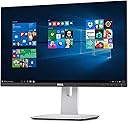
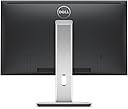
๐ฅ๏ธ Elevate your workspace with ultra-sleek clarity and power-packed connectivity!
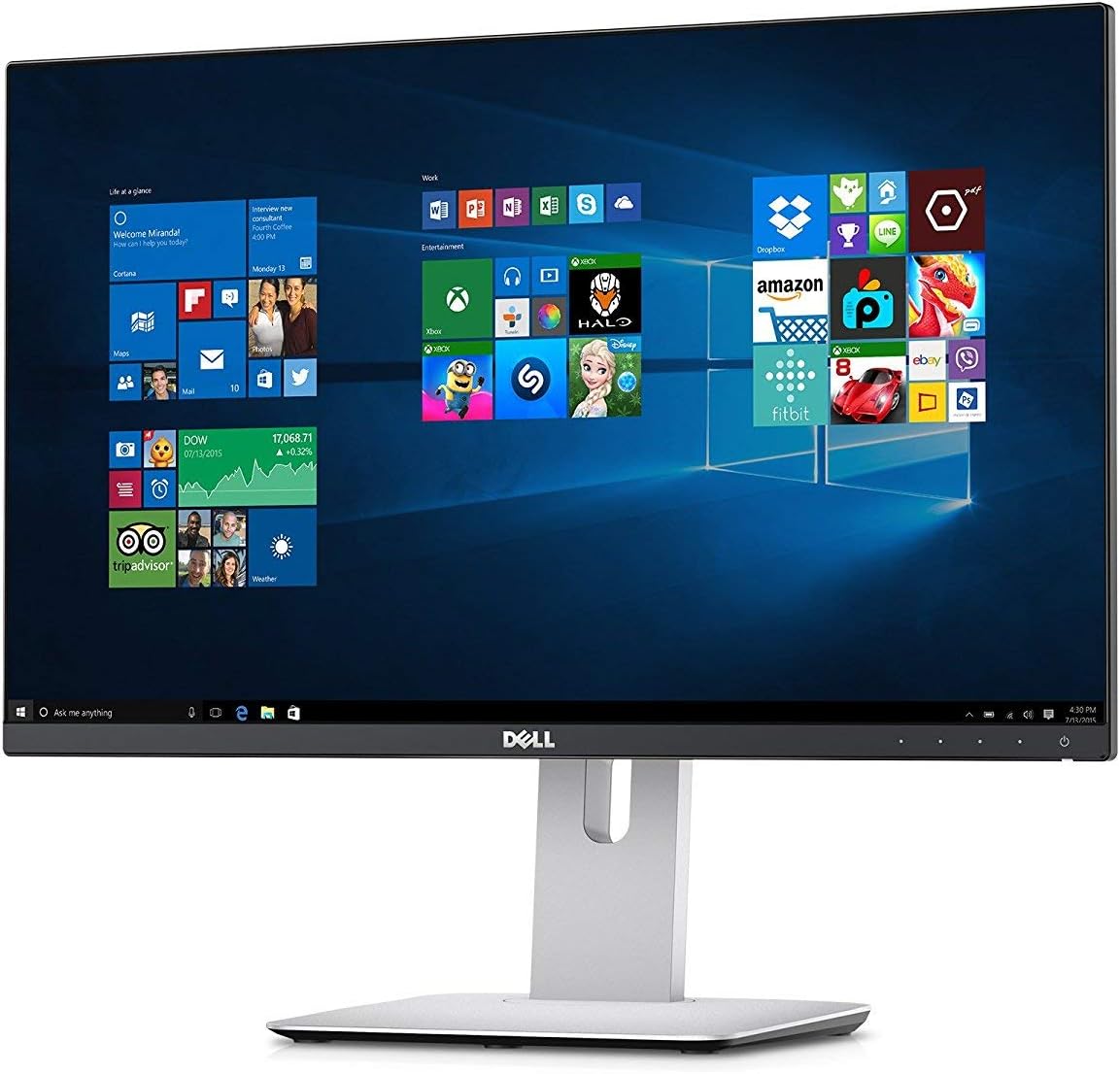
The Dell UltraSharp U2414H is a 23.8-inch Full HD IPS monitor featuring the worldโs thinnest 6.05mm bezel for seamless multi-monitor setups. It delivers vibrant colors with 96% sRGB coverage and wide 178ยฐ viewing angles. Designed for professionals, it offers extensive ergonomic adjustments including height, tilt, swivel, and 90ยฐ pivot. Connectivity is versatile with 2 HDMI (MHL), DisplayPort, mini-DisplayPort, and 3 USB 3.0 ports, including a high-current port for fast device charging. Environmentally conscious with ENERGY STAR and EPEAT Gold certifications, plus PowerNap power-saving technology.


| ASIN | B00GTV05XG |
| Adaptive Sync | FreeSync |
| Additional Features | Anti Glare Screen |
| Aspect Ratio | 1.78:1 |
| Best Sellers Rank | #245,595 in Electronics ( See Top 100 in Electronics ) #5,171 in Computer Monitors |
| Brand | Dell |
| Brightness | 250 cd/mยฒ |
| Built-In Media | 3-Years Advanced Exchange Service and Premium Panel Guarantee, LED-backlit LCD monitor - 24", Mini DisplayPort-DisplayPort cable, Software, Stand, USB cable, cable management cover |
| Color | Black |
| Color Gamut | 96.00 |
| Connectivity Technology | HDMI, DisplayPort, Mini DisplayPort, USB 3.0 |
| Contrast Ratio | 1000:1 |
| Customer Reviews | 4.3 out of 5 stars 847 Reviews |
| Display Resolution Maximum | 1920 x 1080 |
| Display Technology | LED |
| Display Type | LED |
| Global Trade Identification Number | 00884116128656 |
| Hardware Connectivity | DisplayPort, HDMI, Mini-DisplayPort, USB 3.0 |
| Has Color Screen | No |
| Image Contrast Ratio | 1000:1 |
| Item Dimensions D x W x H | 7.28"D x 21.23"W x 19.12"H |
| Item Weight | 8 Pounds |
| Manufacturer | Dell |
| Model Name | U2414H |
| Model Number | U2414H |
| Mounting Type | Wall Mount |
| Native Resolution | 1920x1080 |
| Number of Component Outputs | 2 |
| Number of Height Positions | 3 |
| Picture Quality Enhancement Technology | IPS, Anti-Glare |
| Refresh Rate | 60 Hz |
| Resolution | FHD 1080p |
| Response Time | 8 Milliseconds |
| Screen Finish | Glossy |
| Screen Size | 24 Inches |
| Screen Surface Description | Glossy |
| Shape | Rectangular |
| Specific Uses For Product | personal |
| Total Number of HDMI Ports | 2 |
| Total Usb Ports | 3 |
| UPC | 796594726104 884116128656 |
| Unit Count | 1.0 Count |
| Voltage | 120 Volts |
| Warranty Description | 3 years warranty |
L**W
Excellent IPS monitor for gaming, extremely accurate once calibrated
After having used an Asus TN panel for the last 4 years, the jump to IPS was an extremely noticeable one. Within minutes of turning this monitor on, I was left wondering why I hadn't made the switch to IPS sooner. First in terms of style, the bezel is almost non-existent. My unit does have a fair bit of backlight bleed, more pronounced in the bottom right corner and slightly noticeable in the other corners, but nothing that really bothered me. IPS glow from off-angle is present, but inherent to the tech and really not an issue during normal use. The anti-glare panel coating works well. Height and tilt adjustment work well. I use my computer almost exclusively as a gaming rig, so when I decided I had enough with the poor color reproduction and terrible viewing angles of a TN panel and started looking for an IPS display, I first narrowed them down by response time. Note that while other IPS displays may claim a lower response time of 5ms, as compared to the 8ms of the U2414H, you can't always take those numbers as truth. Scouring professional reviews for this monitor I found that it was about the best you will get in terms of response and input lag for an IPS display. I can say that I notice almost zero difference form my Asus TN panel, which claimed a 2ms response and is often seen in reviews as one of the lowest response monitors out there (the Asus VS248H-p if you are interested). Simply put, those worrying about response time of this IPS vs a good TN have nothing to worry about. This monitor performs great from 3rd person RPGs like the Witcher 3 to fast paced FPS like Battlefield 4. I don't notice a difference from my old TN. I'm also a bit of a color nut. I consider myself a novice calibrator/enthusiast. The main reason I wanted to jump to IPS was for the supposed increase in color reproduction and IQ. In short, this monitor blows away my old TN panel in this department. I had thoroughly calibrated my TN panel, and had even recently bought a Spyder 4 colorimeter to try to acheive a better calibration. However even with hardware calibration the TN was still off. Gamma was always a mess, and obtaining a neutral 6500K white was almost impossible. I was very interested in the U2414H because it comes with a factory certified calibration, which is activated in the sRGB mode. It also comes with an included calibration report with Color temperature and gamma charts. I will say that the factory calibration was quite good, and if I wasn't sensitive to calibration I would have probably been happy with it. However I immediately noticed that the image was fairly warm and the gamma felt a little high (too dark). I was able to verify this using the Spyder 4 sensor and dispcalgui calibration software (highly recommended if you intend to calibrate your monitor further). In the factory calibrated sRGB mode, I measured a color temperature of about 6250K, which is a good bit warmer than the 6500K target. I also measured a gamma of 2.3, slightly darker than the 2.2 standard. There was also noticeable clipping in the high end with red and magenta, causing red, orange and pink type shades to be over-saturated. This is what I measured only for my unit though, other units may have better calibrated sRGB modes, so you may get better results than what I did. However I will post my settings, using my colorimeter and software, to help those who are unhappy with the sRGB mode. In order to obtain a 6500K white point, in the Custom Color mode I ended up on the following: R = 100 G = 97 B = 99 Contrast = 75 Brightness = 32 (for 120 cd/m2) After making those simple changes, the display was very close to ideal. White point measured at 6540, and gamma came in at 2.1, as it is in most of the other modes from my testing. Although the gamma is slightly lighter, the colors are extremely accurate. After running through a full calibration with dispcalgui, the end result was only slightly different than what I got just from adjusting the monitor controls. The difference in normal images was almost imperceptible, and could only really been seen when looking at a grayscale or the like, where the extremely slight reddish tint was removed. Using the verification function in dispcalgui showed colors with errors less than 2 across the board and 99% sRGB coverage. Overall, for the price point this IPS monitor is wonderful. It sports extremely accurate color reproduction with only a small amount of effort and has very fast response time that should pose no issue for gamers. The factory calibrated sRGB mode is fairly close to the standard out of the box, but at least on my unit was not ideal. By making small adustments to the custom color mode, I was able to dail the display in to 6500K fairly easily with a default gamma of 2.1. I think most people would be happy with the custom color adjustments I posted above. If you have a colorimeter, using dispcalgui you can obtain an almost ideal calibration on this monitor. Extremely pleased. Why did I wait so long to go IPS?!
R**S
Excellent Monitor !!!!!
I ordered the Dell U2414H from Amazon after noticing the price was down to $266, with Prime Free shipping. It arrived in excellent condition, no dead pixels and even screen uniformity . So far, so good. I connected it to my AMD Radeon 6800 Graphics Card via mini-display port and it was up and running. Windows 8.1 recognized the display automatically. This monitor is absolutely beautiful! I have a 2012 20-inch IMac and I thought it was very bright in comparison to my 7-yr old Viewsonic 22-inch monitor. Now I find the IMac dim in comparison ! And this is using the default, pre-calibrated sRGB setting via the display port. I bought this monitor for general use, mostly for trading stocks, web- surfing, occasional photo editing and watching videos from You Tube. I don't intend to use this for gaming, but I read that response is fast enough for online games as well. I uploaded some pictures I took from my dSLR camera, as well as from my Iphone and they all look great, exceptionally bright and sharp details, and colors are dead-on accurate. I was considering a few other models, including the popular U2412H and the new U2415, Asus PA248Q, and Viewsonic VP 2365. According to some reviews, although the 2412H has a resolution of 1980 X 1220, it's negligible unless you need all the real estate of a screen like most professionals want. Unless you do extensive Photo or video editing, the U2414H is more than plenty. Also, the 2412H suffers from a yellowish-tint screen, instead of white. Plus it doesn't have HDMI port for flexibility of input options, like most consoles have. The U2415 is basically the same as the U2412H in resolution, but share the same features as the U2414H. But one customer reviewer noted that it is missing the the A-TW Polarizer to minimize IPS glow, like the U2414H have, so with 16:10 resolution aside, the newer 2415H is not a better monitor than the U2414H. The ASUS PA248Q is also quite popular, but the ASUS quality control is questionable, or inconsistent the least. And I wasn't going to chance it. I am glad I made the right decision to purchase the U2414H. I am thinking about converting into a dual-monitor set-up in the future. I'm going to wait until the glitches of daisy-chaining via display port are fixed. It could be incompatibility with certain Graphics cards like N- Vidia or Windows itself. Meantime, it is a superb monitor for my general uses.
R**1
Super Sharp Dell
Just got this monitor about 3 weeks ago. I'm floored by the accurate consistent colors, dark blacks, and decent whites. Detail in photos are really amazing as I'm looking forward to using Adobe Lightroom. I did adjust the brightness and contrast ever so slightly to my taste based on www.lagom.nl/lcd-test/ . Out of the box, the settings are very good except for the brightness and some other minor adjustments. Also worth mentioning is the backlight bleeding seems to be well controlled on this unit although I know it does occur in most IPS panels to some degree. This panel has a DoM Jan 2015 REV A03. Screen size is quite a change for me coming from an 8 year old HP W2007 20" which just won't kick the bucket. Both HDMI and DisplayPort connections are a welcome but...both connection setups had me going for a day. I have the Intel i5 NUC with a mini-DP and mini-HDMI port. The HDMI works fine now but upon initial hook-up, I noticed the screen looked a little bit washed out. Went into the HD graphics control panel under <Select Display> and noticed it saying "Digital Television"! Color range had been limited. So further on looked at <Color Settings > <Advanced> and set Quantization Range to <Full Range> and shazzam .. full sRGB. Testing the DisplayPort wasn't easy. I kept getting "DisplayPort is Not Connected" dancing across the screen when it was. Ended up going to Dell's Monitor forum and found an old post with the fix that worked for me. Pwr off the PC, Pwr off monitor, Disconnect pwr cord from the monitor, Disconnect all cords from the PC, (usb, vga, DP, HDMI, etc), While disconnected, press and hold pwr button on monitor for 5 seconds (I did 10..it's touch sensitive), reconnect pwr cord and DP connector to monitor, reconnect all monitor cords to PC, pwrd the NUC on and then the monitor, finally changed the Imput Select to DP and bingo, DisplayPort working! Back into HD Graphics 6000 control panel and with DP cable attached, <Select Display> shows "Digital Display Dell U2414H". That's where I'm at now and its spot-on. No dead pixels upon arrival. Outstanding monitor and I noticed the price is dropping as I picked Amazon's Warehouse Deals Used-Like New @ $250. Still, doesn't get much better than this...
J**H
Great monitor! Zero dead pixels and works with my MacBook Air. One very minor quirk.
This is a great low-cost monitor if you're looking for a full 1920x1080 display. I purchased two of these and was happy to see that there are zero dead or stuck pixels on the displays. I've had a lot of issues with a pixel or two being dead (black) or stuck to a particular color in the past so I'm very sensitive to it and always inspect new displays very closely by displaying solid colors on the whole display and searching for any issues. The side bezels on these displays are very thin and work well if you plan to place the monitors right next to each other for an expanded desktop. One interesting thing that I've noticed is that it seems that the display panel itself is slightly spaced away from the LED backlight in the monitor. This doesn't cause any issues but it can seem kind of strange at the VERY edge of the screen because if you move your head to different angles you will be able to change your perspective so the actual display screen appears like it is off to the side of the screen and not behind the backlight. It's hard to explain this without seeing it, but basically it will look like the top layer of the display is moving or in "3D" because you will see that it changes perspective slightly different than the actual backlight behind the display since the backlight is a little bit further away. Imagine if you were looking at a piece of paper on the other side of a window. If the paper was right up against the window it would look the same from all angles, but if the paper was a few inches beyond the window it would seem to get further or closer to the edges of the window depending on the angle you were viewing it from. That's essentially what happens on the edges of these monitors. I have this connected to my MacBook Air using the mini-DisplayPort cable (which connects to the Thunderbolt port on a Mac) and it works great!
M**W
this is the best monitor i've ever had
this is the best monitor i've ever had. it's crystal clear, the colors are vibrant, the hardware is gorgeous, and it feels super peaceful. yes. peaceful to look at. something that i need to point out: it has a very matte finish. that is, this is NOT a glossy screen. too few people mention this in reviews of monitors. and this is probably the most important feature to me in any monitor. while some bat crazy folks have come to love having a mirror in front of them these days (i.e. high-gloss screens made by most manufacturers, including the big "A" enemy), i really really really really really really really really prefer this matte finish. it DOES NOT reflect light to the point where you cannot see (glossy screens only look good in dark rooms, they're impossible in a room with ANY light in it). for this reason, it's super easy to work on for this screen (documents, web browsing, data analysis). also, the size is perfect for a desktop - i wouldn't go a fraction of an inch larger, as it would be too BIG. it's super easy to adjust the height, you just slide it up and down, and you can easily adjust the angle also - two essential features. make sure you download/install the DELL software that comes with it, as it makes a difference - much easier to adjust the screen partitioning, etc. overall, i couldn't be happier with this gorgeous product. thank you, Dell for NOT making a hideous, impossible, mirror screen like too many of the rest!
E**N
Just do it! Buy three of them!
Let me preface this review with the fact that I have never owned a high quality monitor before. So my thoughts on this monitor may be skewed a bit. HOLY CRAP THIS IS A GOOD MONITOR! I had no idea what I was missing. I bought two of these to replace a broken HP monitor I had and a crappy TV that I was using as a monitor. I use one of them as a main screen, one as a vertical screen for music and documents, and I have a crappy alienware screen that I got for free that I now only use for skype, folders, and sticky notes. These are really well built and sturdy. All of my screens would shake when I bumped my desk before, but now they do not. I love the stands they come with. The stands are part of the reason I chose these. The vertical orientation is amazing for documents. One small issue is the menu buttons are hard to press but you should only be dealing with the menu once and then never touching it again. Another small issue is that the cords provided (power, mini-display port, USB) are all pretty short for my setup. I would recommend buying longer cables. The picture is amazing as well. The only issue I had with the picture is that when watching the film "Visitors", which is black and white, the blacks did not look deep enough for my liking. Other than that, the picture is very sharp and easy on the eyes. I love it! If you are looking to upgrade a crappy setup then do it! If you want a monitor that will allow you to work efficiently, then get two and use one vertically. I could not be happier with this purchase.
P**N
BIG setup oversight by Dell.......
I have to qualify my 3 star, as opposed to 4 or 5 star, rating. When you set the monitor up, you have to set, using the monitor itself, where it will receive the signal from the monitor to your graphics card...HDMI, MiniDP, etc. One slight little catch...nowhere in the instructions does it tell you that you have to do that, nor does it tell you how to go about doing it. It's in the setup guide that comes with the installation CD, which you can't use UNTIL you've set up the monitor. I had to unplug this monitor, plug the old monitor back in, which fortunately still works, and search online how to go about setting it up. Of course once you've done that, gone online and found out how to set this monitor up, you can then plug the monitor in again and insert the setup CD and read how to setup the monitor. Who the heck thought of that? If you're without an old monitor to use, then this Dell monitor will be absolutely useless. I actually thought at first that the monitor, or cables, were bad, and almost put it back in the box and returned it. It's a sad commentary on how far Dell has fallen that you have to depend on a third party's webpage to set up their equipment. Having said all of that, the monitor is actually quite good. It has a nice bright picture and I've not noticed a single dead pixel or any backlight at all. The "buttons" on the monitor that you use to set it up are, apparently, touch sensitive, as opposed to the old style push buttons. Getting used to that can be a bit of a pain. My only other problem, besides what I mentioned in the first paragraph, is that the monitor stand, which allows you to slide the monitor up and down for height adjustment, can't be locked into place. So if you push on it accidentally, it will slide down, causing you to have to pull it back up. Would I purchase it again? Yes. But because of the set up snafu of Dell's, I dropped it from 4 stars to 3 An update. I dropped the review to 1 star because the monitor just died on me...after only 3 months. I ordered it exactly 3 months ago today. I come home, screen is black, try moving the mouse and hitting keys on the keyboard to wake it up...nothing. Rebooted, checked to make sure all wires were plugged in, still nothing. Unplugged monitor, plugged in old monitor, old monitor works. So, it has to be the monitor has gone bad in just 3 months. Thanks to Dell I just wasted $200.
W**O
Portrait view: How set up dual portrait monitors on 2015 MacBook Pro retina 15 inch without the Dell Stand. HDMI
How I set up dual monitors on 2015 MacBook Pro 15 inch: I bought two Thunderbolt 3.0 (Mini Displayport) to HDMI adapters from Amazon Basics and two Amazon Basics six foot HDMI cables. Specifically, the adapter is AmazonBasics Mini DisplayPort (Thunderbolt) to HDMI Adapter. I could maybe have used the HDMI port that is available on the right side of the MacBook Pro directly, without the second adapter, but I wanted both cables coming out on the same side of the MacBook Pro; the two Mini Displayports are on the left side of the MacBook Pro. I plugged both Amazon Basics adapters into the two TBolt ports on the MacBook Pro, then the HDMI cable from one to the first monitor and the other HDMI cable to the other monitor (i.e. both are set up independently). Boom, both seen in the display setting the MAcBook Pro. No problems. No hiccups. I could arrange, change scale, etc., from the systems display setting. They both work in 1080p resolution. Specifically, the ideal resolution for these monitors through HDMI cables in portrait mode is 1080x1920 60Hz Note: the newer version of this monitor is the Dell Computer Ultrasharp U2415 24.0-Inch Screen LED Monitor, which has a higher resolution, I think. I do not know if that one goes into portrait mode or not (description says turns "90 degrees", but whether it does that smoothly in both directions, etc., I don't know (must turn in both directions so that one monitor can have bezel-lee top against the other monitor's bezel-less top (which means it's turned the other way, if that makes sense)). Bottom line: I didn't research that monitor fully, and did not want to spring for the higher resolution (which would make my icons and text even smaller at max setting than on this monitor, which is plenty small enough for my eyes...lol). You might want to other monitor so research it. :-) The resolution of the xx15 model is In-plane switching, anti glare with hard coat 3H: Optimal resolution 1920 x 1200 at 60Hz. But, there are several smart reviews that say modern HDMI cables are limited to 1900 x1080, which is the XX14h monitor reviewed here, at least with the cables as I have it set up. I'm no guru, no idea if all that's true. :-) I also note that this xx14h computer has item weight Amazon under 8 pounds, and the xx15 model has item weight over 14 pounds! Don't know if that's the display alone, or if the box has a ton of packing material...lol. If it is heavier by 45%, I don't want it. Again, YMMV. Note: I use Amazon Basics USB-powered speakers, which require the 3.5mm headphone jack and a USB port. I can attach them either to the MacBook Pro itself, or to the back of one or the other of the monitors (the monitors each have the necessary jacks). These monitors do not, in and of themselves, have speakers. The reviews of the Dell speaker intended for these monitors was marginal, so I went with Amazon Basics USB-powered as I didn't want another AC cord to deal with. Had I wanted better sound and an AC powered unit, I likely would have bought the Bose ninety-nine dollar jobber, Companion. Daisy chain: I didn't even bother trying daisy chain the video monitors themselves after reading the nightmares in these reviews. I fretted whether these would work with two HDMI cables, but in the end, it was a plug and play solution. Simple. I'm glad I tried it. For anyone considering daisy chaining these monitors, search these Amazon reviews with the words daisy chain and it'll have you considering the method I used. LOL That said, I think that without daisy chaining, I cannot watch a full image that takes up both monitors...i.e. a gigantic picture. I can mirror both monitors to have identical stuff, or I can have them each act as separate monitors (but with a shared cursor arrow moving across each, from one screen to another). So, when I "full screen" a window, it fills its monitor, but not the other monitor. I can have two full screen things open at the same time--like a Youtube video in one, and an Amazon shopping in the other, for example. I often have a Pages doc in one, and a Word document in the other (portrait mode truly shines for that). However, since I have independent HDMI to each, I cannot have one giant continuous display for movies, gaming, etc. (I do not see a setting for that, anyway, in Display under System preferences, arrangement; someone can correct me if I am wrong). So, if that's your desire, you are going to have to wade into the mucky-mucky of the daisy chaining quicksand. Personally, although the bezel is thin, I don't think I'd enjoy watching videos with the thin black line splitting the screen anyhow. But, that's me. I'm cool with, for example, putting my Tweetdeck on one monitor, and watching Youtube videos on the other, all controlled with one mouse and mouse cursor, if that makes sense. I added the "Display Menu" app by Thorsten Karrer in the Mac app store, free, which gives me more choices for scaling and puts an icon on the desktop for quick changes in resolution. See it in the Apple App Store. It's use is optional, though. I just wanted more scaling choices depending on the type of work I'm doing (i.e. if I need more screen real estate and windows). I use both monitors in portrait mode, which works great for YouTube commenting, Twitter feeds, and longer documents. Thin bezel allows no significant "knife" between the monitors when each is showing it's own material (the "knife" might be too much if one is daisy-chaining these babies to watch a movie half on one, half on the other, though). I have read about people placing gaffers tape in the rear to "join" the monitors such that light does not come through the gap between them; I have not found this necessary. All settings to rotate the images to portrait are in System Preferences, Display, Settings. I honestly adore the dual portrait set-up. (One funny finding is that, for some reason, Youtube video pop-up ads--those annoying rectangular things we have to click to turn off--come at the bottom of the portrait page, not in the video, so no more clicking! That said, the video itself is in the center of the portrait monitors, and only you can tell if you like it that way). IMPORTANT: I watched some Youtube videos reviewing this monitor to discover-- thankfully, before I ordered the two I own-- that the dual stand option from Dell, the one that is offered as an option when buying two of these monitors, DOES NOT allow the monitors to be used in portrait mode! Only in landscape mode. So, anyone who wants even one monitor in portrait, or even occasionally wants portrait, should not buy the stand. Frankly, unless someone is trying to place this setup on a miniature desktop with a single footprint, the stand is not necessary. With the optional dual stand, you won't be using the innate rotating stands that already come with the monitors. :-( So, I did fine (and saved $80) by not getting the extra stand, and now I can choose landscape or portrait, or a combination. The twin monitors sit nicely on my desktop, no issues. I am very glad with this purchase. If I run into monitors dying, dead pixels, etc., I'll update this review. Dec 6, 2016. The picture quality is quite decent, the set-up was much easier than I had anticipated with my 2015 retina McB Pro.
J**M
Works well with Macbook Pro
So far after a month I am happy with this monitor. It works no problem with my 2014 Macbook Pro 15' with the included DisplayPort cable. My only wish is that it was a bit brighter. The Macbook Pro screens, which I am used to working on, go brighter. With my Macbook Pro set up beside my UltraSharp I have to turn down the brightness on the Macbook Pro 2-3 bars to match. Not a big issue though, especially for me as my working location is usually fairly dark. I love all the ports though, and the versatility of the height adjustments and tilt. Other than the brightness the colour seems to be very good. Especially important for me, doing pixel design in Sketch 3, is that greys show well, and they do. My grid lines in Sketch 3 never disappear, and there is a visible difference from 100% white to 99% to 98% and so on.
M**L
Excelente Monitor Auxiliar para mi Macbook Pro
La posibilidad de conectar por Thunderbolt, el extra de 5 puertos usb a 2amps y la similitud de color con el monitor de apple lo hacen una herramienta perfecta para mi trabajo como diseรฑador.
D**S
Works as expected for an used item
Works as expected for an used item. To the credit of Amazon, you wouldn't say it was an used item. Only the control buttons are difficult to operate.
@**9
Invested in a excellent display as an additional monitor
I got this delivered yesterday. Only I had to plug this to power and mini-display to DVI connector to my Mac. Its amazing, the color reproduction, the design. the number of ports available, stand flexibility, form factor, you will love it.
E**R
Excelente monitor
Es un monitor excelente tal como lo esperaba, altamente recomendable. Lo puedes utilizar tanto para trabajo como para juego, sus colores son muy vivos y las imagenes muy nitidas. Tiene algunos extras como un hub USB, 2 puertos HDMI y algunos otros mas esto hace que este monitor sea muy versatil.
Trustpilot
2 weeks ago
2 weeks ago